iOS has no single Clear Cache button the way Android does. To clear cache on iPhone, you handle each app on its own: Safari gets cleared through Settings, browsers like Chrome clear themselves from their own menu, and other apps are cleared inside the app, offloaded, or reinstalled. The whole thing takes about ten minutes.
Nothing in this guide deletes your photos, messages, passwords or synced files. If you follow the paths below in order, the first thing you do is look at where the space actually went, and you only clear what is safe to clear.
Table of Contents
Why iOS Has No Clear Cache Button
Every app on your iPhone runs inside its own sealed container, which Apple calls a sandbox. An app can read and write its own files, and nothing else. One app cannot reach into another app’s folder, so no system-wide tool exists that could clear every cache in one tap.
Android works differently because apps there are more permissive and each one exposes its own clear-cache control inside its settings screen. People who switch from Android to iPhone usually search Settings for that button, cannot find it, and assume something is broken. Nothing is broken. The button simply is not part of how iOS is built.
The same sandboxing rule is why third-party cleaner apps cannot do what their ads imply. A cleaner app can clear its own data, show you what it thinks your storage looks like, and walk you through menus. It cannot reach into Instagram’s folder. Some of those apps charge a subscription for a list of shortcuts.
What You Need
- An unlocked iPhone you can reach with Face ID or your passcode. On a locked device, some storage details stay hidden.
- About five to ten minutes. Apps with several gigabytes of downloads take longer.
- Your iOS version, because the Safari menu moved. Tap your name in Settings > About and read the version number.
- Nothing else. No cable, no computer, no app download.
If you rely on Safari for a password manager or a bank app, know that clearing Safari website data signs you out of websites. Your saved passwords are stored in the Passwords section of Settings, not in the cache, so they survive. Keep a photo of any two-factor QR code you might need before you start.
Step-by-Step: How to Clear Cache on iPhone
Step 1: Check Available iPhone Storage
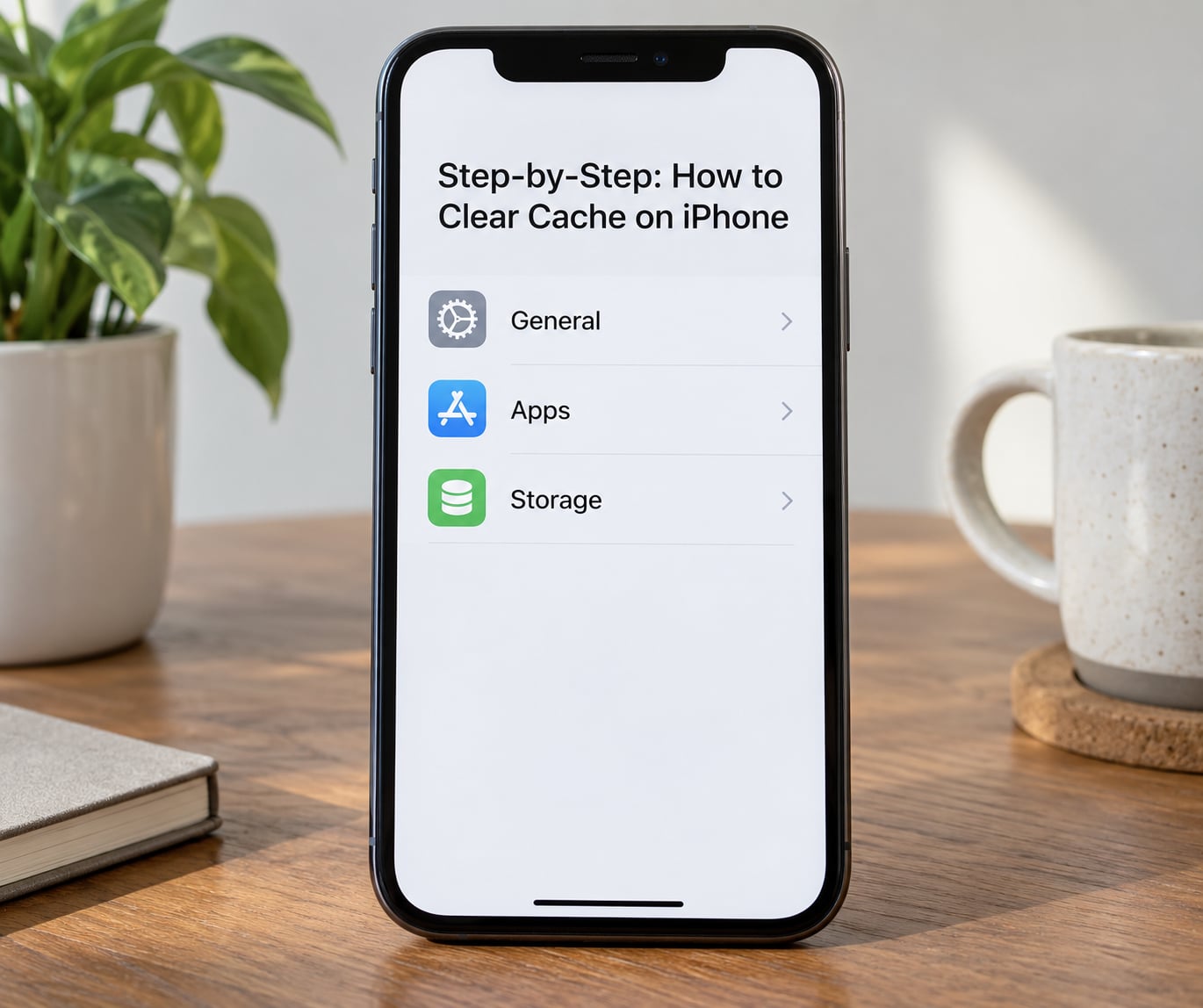
Open Settings, tap General, then tap iPhone Storage. The screen opens on a bar chart that lists every app with the space it uses, and a line at the top telling you how much room is left.
Read the chart from the top down before deleting anything. The largest bars are usually Photos, Messages, Mail, WhatsApp and the apps you stream video on. YouTube and Spotify grow quietly in the background because they cache playback data.
Scroll past the app list and you will find the system buckets: System Data, which is the catch-all for temporary system files, and iCloud Drive. System Data behaving strangely is the single most common reason people think a cleanup failed, and Step 6 explains it.
How do you know it worked? The number at the top drops, and the app you targeted shows a smaller size than it did a moment earlier.
Step 2: Clear Safari Cache on iPhone
On iOS 18 and later, Safari lives under its own menu inside Apps. Open Settings, tap Apps, tap Safari, then scroll to the bottom and tap Clear History and Website Data. Confirm with Clear History and Data.
On iOS 17 and earlier, Safari sits directly in the main Settings list. Tap Settings > Safari, scroll to the bottom and tap the same Clear History and Website Data row. Guides that say Settings > Apps > Safari are correct for newer phones and wrong for older ones, which is why so many walkthroughs feel out of date.
This removes cached images and files, cookies, and browsing history in one action. You stay signed out of websites afterwards, and any form you were part-way through is gone.
If you only want to be signed out of websites rather than lose your history, scroll down to Advanced and turn off all website data under the same panel. That is the cookies-only version.
You will know it worked when Safari opens to a blank start page with no recently closed tabs, and pages you revisit take a second longer the first time while they reload.
Step 3: How to Clear Cache for a Specific App
Open Settings, tap Apps, and pick the app from the alphabetical list. On older iOS versions, apps sit in a single list near the bottom of Settings instead. Tap the app, tap Storage, and look for Clear Cache.
Apple’s own apps mostly do not expose that row. Safari is the exception, handled in Step 2. For the rest, the cache control lives inside the app’s own settings screen, so open the app and look for a Storage, Cache or Data section.
These are the usual places for the biggest offenders:
| App | Where the clear cache control is |
|---|---|
| Spotify | Settings > Apps > Spotify > Storage, or inside Spotify under your profile and settings |
| Instagram > profile > menu > Settings and privacy > Account > Storage, then clear cache | |
| TikTok | TikTok > profile > menu > Settings and privacy > Manage space |
| YouTube | Clear cached videos through the app’s settings, or from the video downloads screen |
| Netflix | Netflix > My Netflix > Manage Downloaded Movies, which lists each download by size |
| WhatsApp > Settings > Storage > Manage Storage, which shows Cache and a clear option | |
| Google Photos | Google Photos > profile > Free up space, or delete from Google Photos to free iPhone and cloud copies |
| No cache option. Remove and re-add the account under Settings > Apps > Mail > Accounts |
Mail is the awkward one. Cached attachments from a large mailbox can hold onto a lot of space, and emptying the server trash will not free them. Removing the account from the phone and signing back in does.
You will know the cache is gone when the app’s size in iPhone Storage drops and the app opens to fresh content instead of a stale screen.
Step 4: Clear App Data When the Cache Is Not the Problem
Some apps never offer a cache option, and some keep their weight in stored data rather than cached files. For those, offloading or reinstalling is the route. Each option does something different.
| Option | App removed? | Your documents and data | Use it when |
|---|---|---|---|
| Offload App | No, the icon stays | Kept. Cached files may go, stored data stays | You are out of space and want the app back later |
| Delete App | Yes | Removed from the phone | You never use the app again |
| Delete and Reinstall | Yes, then fresh | Removed, then rebuilt from sync | An app crashes, freezes or logs you out repeatedly |
Offload App is misunderstood more than anything else in iOS. It keeps your documents and data, which is often the bulky part, so on an app with a large Documents and Data number it can free very little.
Reinstalling is the reliable reset, and it comes with a warning. Local data goes with the app: anything the server does not hold for you is lost. Check first that the important parts sync. Photos should be on in Settings > Photos, and messaging apps such as WhatsApp should show a backup date in their chat settings.
After reinstalling, expect to sign in again and grant notifications, camera, contacts and location access when the app asks.
Step 5: Restart Your iPhone
On iPhone X and later, press and hold the side button plus either volume button until the slider appears, slide it, then hold the side button until the Apple logo appears. On iPhone 7 and 8, press and hold the side button plus the volume down button until the slider appears.
Older iPhones with a Home button restart by holding the Home button and the top or side button together.
A restart drops temporary system processes and stops caching in the background. If you cleaned storage but noticed slowness afterwards, this is the step that settles it. Newer iOS releases hit the same cache limitation as older ones, but a restart still helps both.
You will know it worked because the Apple logo appeared and the phone came back to the lock screen.
Step 6: Confirm That Storage Was Freed
Go back to Settings > General > iPhone Storage and check the number at the top again. It should be several gigabytes lower after clearing Safari data and clearing caches in a few large apps.
If the total barely moved, look at System Data. That bucket holds temporary files and caches iOS creates itself, and it can stay inflated after you clean up. It often settles on its own once the phone has been restarted and left idle for a few hours.
Check the Recently Deleted folders too. Photos and Files hold deleted items for about 30 days, and Messages can hold them for up to 40 days. Until you empty those folders, the space has not come back.
Finally, remember that iPhone Storage and iCloud Storage are two different things. Clearing your phone does not shrink your iCloud Drive, and solving one leaves the other exactly as it was.
Common Mistakes
Treating cache as app data. A cache is a duplicate copy of something already stored elsewhere. App data is the working content itself. Clearing one loses a speed bump; clearing the other loses your work. When in doubt, take the option that keeps the app installed.
Deleting photos you did not mean to. In the Photos app, check Recently Deleted before you assume a delete is final. Deleting on one device with iCloud Photos on removes it from all of them.
Following a menu path from the wrong iOS version. If Settings > Safari does not exist, scroll the main Settings list to find the Apps menu introduced in iOS 18, then open Safari inside it. Both layouts are correct, just not on the same phone.
Reading iPhone Storage as iCloud. The bar at the top of Settings with your name shows iCloud Drive usage, not the phone. Look at the on-device number inside iPhone Storage.
Expecting the number to drop instantly. Storage recalculates on its own schedule. Restart, wait, then check again before you conclude the cleanup failed and do it a second time.
Paying a subscription for a cleaner app. Sandbox rules mean it cannot clear other apps’ caches. A paid app walking you through the same menus is not a shortcut.
Resetting the phone as a first move. Erase All Content and Settings is a last resort. On an iPhone that feels slow, a restart and a targeted cache clear fix the problem far more often, and resetting means rebuilding every account, setting and login by hand.
One practical tip: turn on Background App Refresh in Settings > General and leave it on unless you have a specific reason to switch it off. Apps refreshing in the background keeps their working data current and their caches small.
Frequently Asked Questions
Does clearing the cache on an iPhone delete my photos, messages or passwords?
No. A cache is a temporary copy of files an app has already stored or downloaded, so removing it does not touch your photo library, your message threads or your saved passwords. What it can remove is your website logins, because those sit in cookies that some clear commands delete alongside the cache. Saved passwords live in Settings u0026gt; Passwords and are unaffected.
Is it safe to clear cache on iPhone?
It is safe for Safari and for apps that offer a clear cache option, because nothing stored only on the phone is involved. The risk sits with Delete App and with reinstalling an app, which remove local data and can sign you out. If you stick to clear cache, clear Safari data and offloading, you can undo nothing and lose nothing that matters.
How do I clear cache and cookies on Safari in iPhone Settings?
On iOS 18 and later, open Settings u0026gt; Apps u0026gt; Safari and tap Clear History and Website Data at the bottom, then confirm. On iOS 17 and earlier, the path is Settings u0026gt; Safari with the same button. That action removes cached files, cookies and history together. To sign out of sites while keeping your history, use Advanced and turn off all website data instead.
How often should I clear cache on iPhone?
Only when something is wrong. Clearing a working cache makes pages and apps slower on their next load because the data has to be downloaded again, and it gives you no benefit on a phone that is already running fine. Clear it when storage is nearly full, when an app crashes or freezes repeatedly, when Safari pages will not load, or when an app keeps logging you out.
What should I do if iPhone storage is still full after clearing cache?
Look past the app list in iPhone Storage at System Data, which often stays inflated and settles after a restart and a few hours of idle time. Empty Recently Deleted in Photos, Files, Notes and Messages, since those hold deleted items for about 30 days and up to 40 days for Messages. Check streaming app downloads and offline maps, and confirm iCloud Drive is not the space you actually need to free.
Conclusion
Start in Settings > General > iPhone Storage and read the chart before you touch anything. Clear Safari website data next, since it is the one cache iOS gives you a direct control for, then clear the cache inside the two or three largest apps, restart the phone, and check the number again.
If a job is still there after ten minutes of that, do not reach for Delete App or a paid cleaner. Offload it, reinstall it if the app is misbehaving, and leave your photos, messages and passwords exactly where they are.