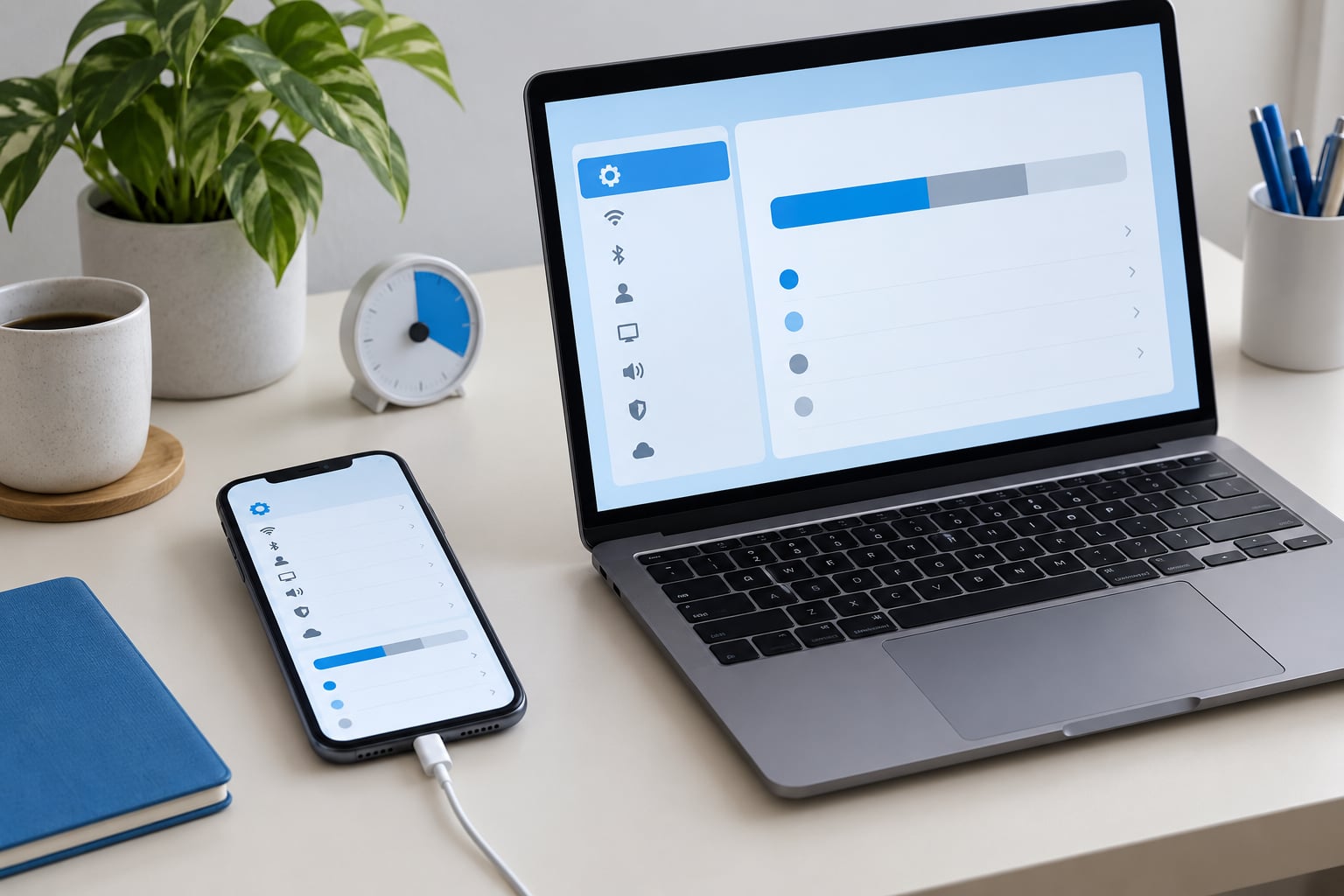
If you’re searching for why is my iphone so slow after update, the short answer is this: iOS re-indexes your photo library, messages and files and re-optimizes every installed app in the background, and that background work keeps the processor busy. On a major release that work can take 24 to 72 hours to finish, and it goes faster with the phone plugged in on Wi-Fi.
So the first thing to work out is whether you’re still inside that window or whether something else is slowing the phone down. A phone that settles by day three is normal. A phone that’s still sticky on day five, especially one with plenty of free storage, usually has a second cause you can actually fix.
Work through the steps below in order. The first ones are free and reversible; the destructive ones are at the end, and you shouldn’t reach them until you’ve backed up.
Here’s a quick read on what you’re seeing and where it usually points:
| What you notice | Most likely cause | Where to go |
|---|---|---|
| Everything is slow for the first day or two | Background indexing and re-optimization | Wait, keep it on Wi-Fi and power, then restart |
| Apps open slowly, scrolling stutters, no warning about storage | Free space under 10 to 15 percent | Settings > General > iPhone Storage |
| Typing lags or feels sticky while everything else is fine | Third-party keyboard or predictive text rebuilding | Settings > General > Keyboard |
| Slow plus unusually warm, or slow when charging | Thermal throttling or a worn battery | Let it cool, then check battery health |
| Slow plus the battery draining fast | Push email, widgets, or one app looping | Settings > Privacy & Security > Analytics & Improvements |
Table of Contents
- What You Need
- Step-by-Step
- Common Mistakes
- Frequently Asked Questions
- How long can an iPhone stay slow after an update?
- Can a major iOS update make an older iPhone permanently slower?
- Should I erase my iPhone to fix slowness after an update?
- Why does my iPhone feel slow even when storage space is available?
- Does Low Power Mode make my iPhone permanently slow?
- When should I contact Apple about an iPhone that is slow after updating?
- Conclusion
What You Need
None of this needs a Mac, a repair shop or a new phone. It does need a few things lined up first, and getting them ready saves you from stopping halfway through.
- Battery above 5 percent, or a charger. Restarting a phone on 2 percent is its own little adventure.
- Your Apple ID and passcode. Resetting network settings and re-downloading apps both ask for it.
- A recent backup. Settings > General > Transfer or Reset iPhone > Back Up to iCloud is the quick route. Do it before you delete anything.
- Wi-Fi and a socket you can leave it plugged into overnight. Background processing takes a lot longer on a phone that’s bouncing between weak cellular and Wi-Fi.
- About 15 to 45 minutes. The checks are quick. The settling time is not, and that’s the part people skip.
Step-by-Step
The order below runs from lowest risk to highest. Each step says what it should fix, so you can tell whether it was worth doing before you move on.
Why Is My iPhone So Slow After Update? Check Background Activity
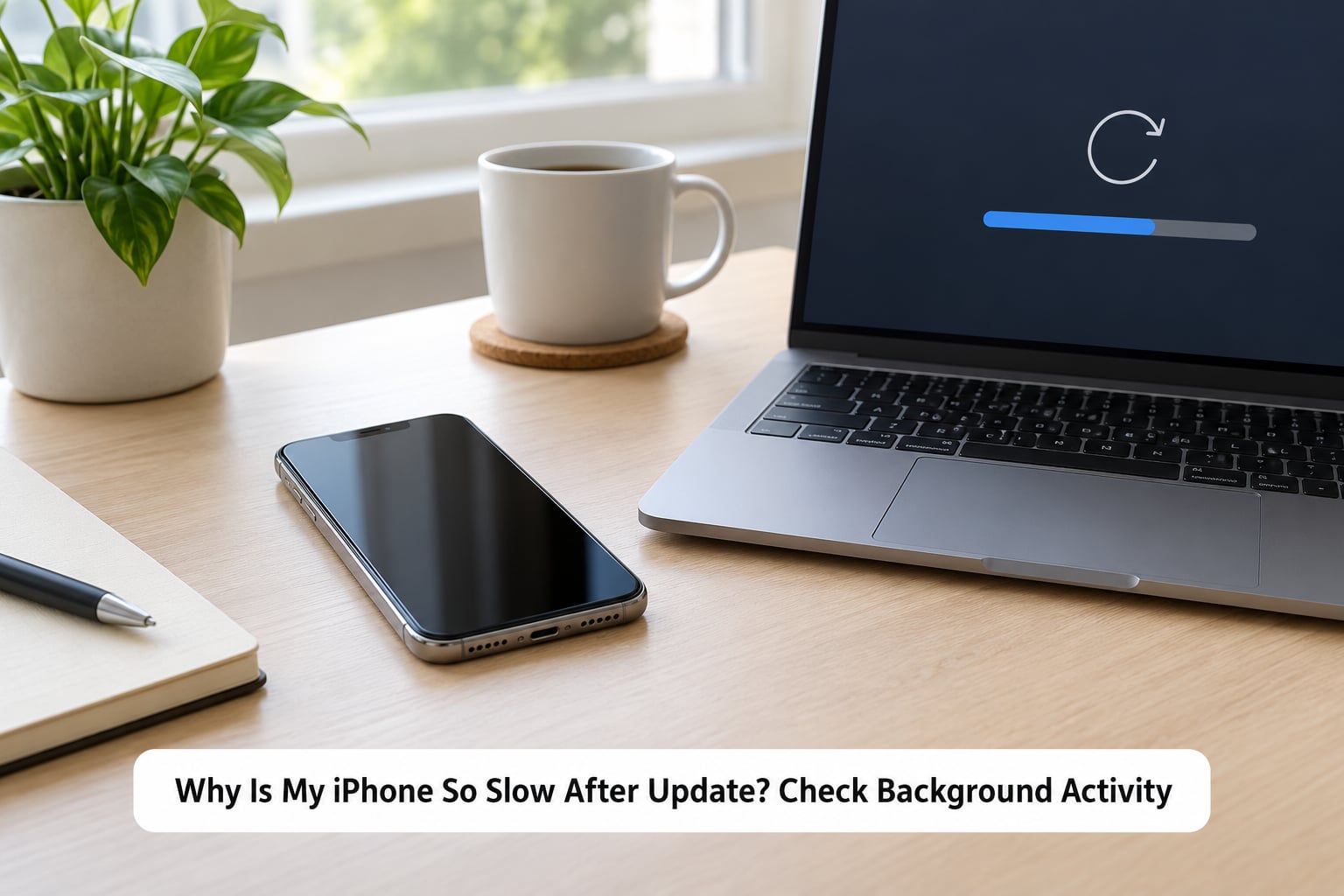
Right after a major iOS release the system rewrites a lot of its own files. Photos and messages get a fresh index, app containers get verified, caches get reorganized and search data gets rebuilt. Post-update indexing is still the most common reason for the lag in 2026, and it’s also the most common reason people panic and erase a phone that only needed two days of patience.
Give it time in the right conditions: plugged in, on Wi-Fi, screen off, and untouched. Restart it once a day during that period, because a restart clears the queues and lets the work restart cleanly instead of grinding through a long list with a dozen apps competing for it.
You’ll know it’s still indexing if the phone is worse in the background than in front of you, and if it briefly speeds up right after a restart before slowing again.
Check Whether Storage Is Full
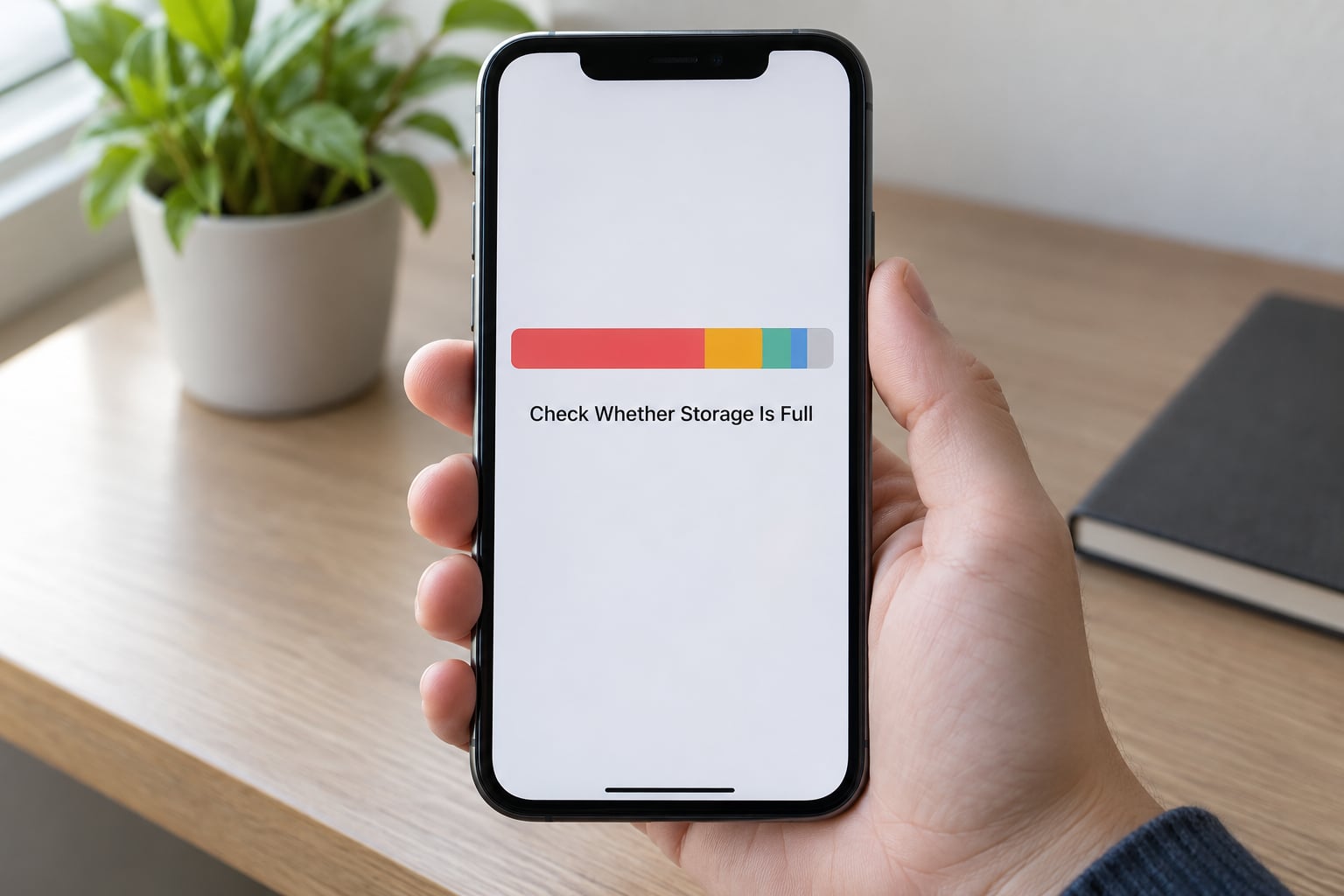
Open Settings > General > iPhone Storage. The list is sorted by size and the top of it is where the answers usually are.
iOS needs elbow room to swap files in and out. When free space drops under roughly 10 to 15 percent of the total, the phone starts working harder for every app launch, and a big update makes that worse because there’s no room to unpack the new system files. People often don’t see a storage warning at all; the phone just feels sluggish.
Start with the easy wins: Recently Deleted photos in the Photos app, old video clips in the camera roll, and podcasts you’ve finished listening to. Then look at the largest apps. If you haven’t opened one in months, delete it. If you use it sometimes, tap the app and choose Offload App, which keeps the documents and frees the app’s own data.
What it should fix: general sluggishness that doesn’t improve after a restart. The phone should feel noticeably quicker within a few minutes of the cleanup, no restart needed.
Restart the iPhone and Reset Network Settings
A normal restart is the obvious first move. On the iPhone models without a Home button, hold the side button until the slider appears, slide it, and wait. On models with one, hold the top or side button and the Home button together until the Apple logo appears.
A force restart is a different thing and it’s worth knowing: press and release Volume Up, then Volume Down, then hold the side button until the Apple logo shows up. Hold that combination even when the screen seems unresponsive.
Reset Network Settings is the step people skip and then wish they’d done. Go to Settings > General > Transfer or Reset iPhone > Reset > Reset Network Settings. It clears saved Wi-Fi passwords, cellular settings and VPN preferences, so you’ll reconnect to your networks afterwards. It fixes lag that feels like it’s coming from Safari, App Store downloads stalling, and radios searching for a signal in a spot with poor reception. It won’t touch your photos, apps or messages.
What it should fix: frozen screens that survive a normal restart, and anything tied to a network connection. Expect a minute of reconnecting afterwards.
Check Battery Health and Low Power Mode
Battery health lives in Settings > Battery > Battery Health & Charging. The number labeled Maximum Capacity is the one that matters. Below roughly 80 percent, iOS applies performance management to stretch the battery’s life, which means it caps how hard the processor can push when you load a demanding app. That feels exactly like a slow phone.
If you sit well under 80 percent, no setting will fix this properly. A battery replacement at an Apple Store or a reputable shop restores the performance you’re used to, and users report the change as dramatic. That’s worth more than every setting below combined.
Low Power Mode, same screen, is different and temporary. It trims background activity and some visual effects, and switching it off restores full behaviour. It does not permanently damage anything. Turn it off, restart, and see whether you notice a difference.
What it should fix: slowness that arrives with heat and fast battery drain, especially on an older phone.
Update or Reinstall Problematic Apps
Open the App Store and tap Update All. Apps built against an older iOS release can behave badly on a new one, and the developers usually ship a compatibility fix within days of a major release.
If one app is the problem, delete it and reinstall it from the App Store. A reinstall clears corrupted data, which is often what makes an app freeze or reset the phone when you swipe it away. Confirm the app syncs through iCloud first, or that you can sign back in.
If the whole phone feels slow rather than one app, check Settings > Privacy & Security > Analytics & Improvements > Analytics Data. The top entries are the apps crashing or looping most often in the background, and the names are honest, sometimes confusingly so. That list tells you which app to reinstall before anything else.
What it should fix: one app that’s slow to open, one app that freezes the phone, or a phone that gets hot when idle.
Check Accessibility and Display Settings
An update can switch on accessibility features that you never turned on, and each one costs a little processing. Look in Settings > Accessibility for Live Captions, Sound Recognition, Voice Control, Back Tap, and under Motion, Reduce Motion and Reduce Transparency.
These aren’t dangers, they’re just expensive. Reduce Transparency in particular removes the blur effects that iOS 26’s Liquid Glass design leans on, and on older hardware that saves a noticeable amount of graphics work. Leave anything on that you actually use, including hearing and visual accommodations. Switch off only what appeared by surprise.
Third-party keyboards deserve their own mention. If typing lags or feels sticky while the rest of the phone is fine, switch back to the Apple keyboard under Settings > General > Keyboard > Keyboards and test for a day. If the lag goes, you have your answer. Toggle Predictive Text off and on again while you’re there, since predictive text is one of the things that rebuilds itself after an update.
What it should fix: keyboard lag, stutter on scroll, and a phone that stays warm without much happening.
Install Any Pending iOS Update or Ask for Help
Check Settings > General > Software Update. Major releases get rushed, and the first point update after one routinely fixes keyboard lag, heat and battery drain reported in the week after release. If a newer version is waiting, install it, especially if your phone has felt sluggish for weeks.
On the question that comes up a lot: you cannot go back to an earlier iOS version on the iPhone. Apple removed the ability to install older software, and the restore process is deliberately blocked. Treat the current version as the one to move forward from.
Contact Apple Support when the slowness continues past a few days on an iPhone with plenty of free space, when your battery health is well under 80 percent, when the phone restarts on its own, or when the same app keeps crashing in Analytics Data. They can run diagnostics that you can’t from the Settings app.
What it should fix: a genuine bug in the current release, which only a newer version or Apple’s tools can address.
Common Mistakes
Most wasted time here comes from taking a destructive action before taking a diagnostic one. Three come up repeatedly.
Erasing the iPhone Immediately
Erase All Content and Settings is the nuclear option and it is almost never the right first move. You lose every setting, every account and all local app data, and you’ll spend longer re-entering passwords than you ever spent waiting for the phone to settle.
Restore from a backup only after the simpler steps, and treat a restore from an old backup as a last move. It can carry the same problem back with it. A better order is: back up now, work through the seven steps above, then decide.
Disabling Every Background App Refresh
Settings > General > Background App Refresh is worth looking at, but switching everything off is the wrong instinct. Apps that never refresh in the background often reload in the foreground, which is slower, and you’ll miss notifications and messages until you open them.
Review the list and switch off only the apps you barely use, or the ones you already know misbehave. On a phone that gets hot and laggy for no visible reason, trimming that list genuinely helps.
Forgetting to Back Up Before Deleting an App
Deleting an app removes its local data. Photos, documents and drafts in Messages usually survive, but anything the app keeps only on the phone goes with it. Offload App is the safer version of the same idea because it keeps your documents.
Back up before you reinstall anything essential, and confirm the app signs back into a working account. Three minutes of backup beats an afternoon of trying to rebuild something that was only on your phone.
Frequently Asked Questions
How long can an iPhone stay slow after an update?
Most iPhones settle within 24 to 72 hours of a major update, and a point update is usually quicker. If your phone is still noticeably slow on day four with plenty of free storage, it is probably not indexing any more. Check iPhone Storage, battery health and your largest apps at that point, and look for one app stuck in a loop under Analytics Data. Leaving the phone plugged in on Wi-Fi with the screen off is what makes the first three days pass fastest.
Can a major iOS update make an older iPhone permanently slower?
No, an update cannot permanently slow your hardware. What it can do is reveal limits that were already there, and a redesign with more graphics work is harder on an older processor than the one it replaced. On an iPhone 11 or 13 the extra effects can be trimmed with Reduce Transparency and Reduce Motion. The lasting limit on old models is usually battery health: below 80 percent, iOS applies performance management that no setting reverses.
Should I erase my iPhone to fix slowness after an update?
Erase All Content and Settings is a last resort, not a fix. Most post-update lag clears with time, a restart, free space and updated apps, none of which require erasing anything. If you do erase, back up first and expect to re-enter every password and account. Restoring that backup immediately afterwards can bring the same problem back with it, so give the fresh install a day of background settling before restoring anything.
Why does my iPhone feel slow even when storage space is available?
Free space is only one of several causes. A worn battery throttles the processor, a hot phone slows down to protect itself, a third-party keyboard or predictive text can make typing stutter while everything else is fine, and a single app crashing in the background burns processor and battery. Accessibility features such as Live Captions, Sound Recognition and Voice Control can also be switched on without you doing it, and each one costs a little processing power.
Does Low Power Mode make my iPhone permanently slow?
No. Low Power Mode is temporary and fully reversible. It trims background activity and some visual effects to stretch battery life, and turning it off in Settings u0026gt; Battery restores normal behaviour straight away. It does not damage anything and it leaves no trace once switched off. The setting worth watching separately is Maximum Capacity under Battery Health u0026amp; Charging, because below 80 percent iOS applies performance management that looks and feels like permanent slowness.
When should I contact Apple about an iPhone that is slow after updating?
Contact Apple when the slowness lasts more than a few days on a phone with plenty of free space, when your battery health sits well under 80 percent, when the phone restarts on its own without you asking, or when one app keeps appearing at the top of Analytics Data. Apple runs hardware diagnostics that aren’t available in Settings, and if the cause is the battery or a fault introduced by the update, a repair or replacement is the only thing that will fix it properly.
Conclusion
If you’re wondering why is my iphone so slow after update, do these three things in order. Give the phone 24 to 72 hours plugged in on Wi-Fi, restart it once a day, and open Settings > General > iPhone Storage to clear space. If it’s still slow after that, work down the steps above and check your Maximum Capacity percentage, because a worn battery is the cause that no setting can undo.
And skip the erase. Almost everything here is reversible, and the fix you need is rarely the drastic one.