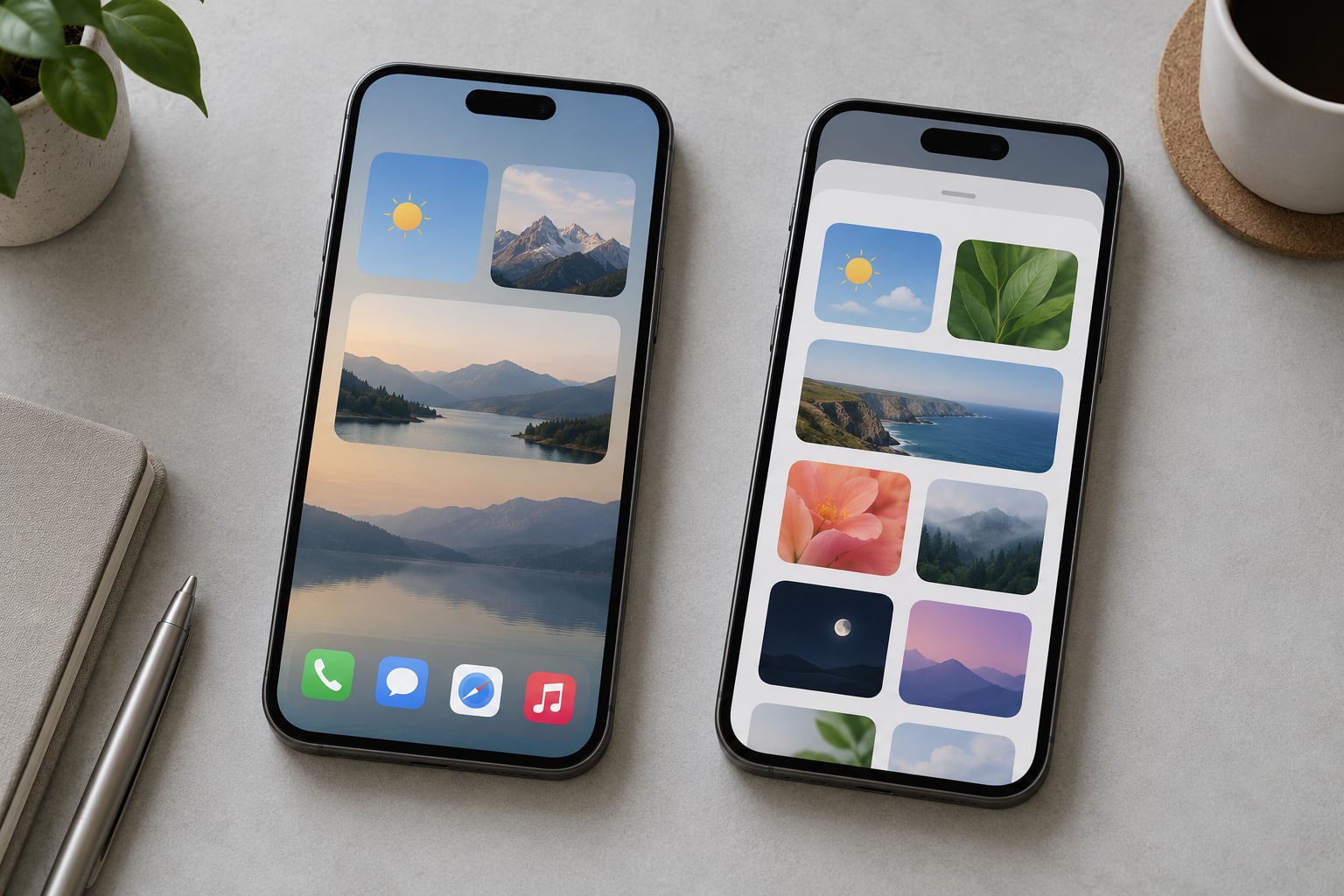
If you have looked up how to add widgets to iPhone Home Screen and want the short answer: touch and hold an empty spot until the app icons jiggle, tap + (or Edit) at the top of the screen, pick your app, swipe through the sizes, then tap Add Widget and Done. It takes about twenty seconds and no app is required.
Widgets are little live cards that put information on your screen without opening anything, so checking the weather or tomorrow’s calendar stops costing you two taps. This guide covers the current iOS steps, what changed on older versions, and what to do when a widget refuses to appear.
Table of Contents
- What You Need
- Step-by-Step: How to Add Widgets to Your iPhone Home Screen
- Fix Problems and Improve the Home Screen
- Frequently Asked Questions
- Can I add widgets to the iPhone Home Screen without holding an empty area?
- Why is the Add Widget button not showing on my iPhone?
- Why is my new widget stuck on another Home Screen page?
- What is the difference between a Home Screen widget and a Lock Screen widget?
- Can widgets replace app icons or update automatically?
- Conclusion
What You Need
All you need is an iPhone or iPad running iOS 14 or later, since that is the release that introduced Home Screen widgets. Keeping your iOS current matters because Apple renames and moves controls between versions.
Third-party widget apps like WidgetSmith or Widgy are optional. Every Apple app with widget support, from Weather to Calendar to Photos, is enough to complete the whole process.
The version differences bite people most often in one place: the button that opens the widget gallery. Here is what each release gives you.
| iOS version | What it added |
|---|---|
| iOS 14 and later | Home Screen widgets in small, medium and large sizes |
| iOS 16 | Lock Screen widgets and interactive widgets you can tap and swipe |
| iOS 17 | StandBy widgets, and widgets can be stacked |
| iOS 18 | Editing controls moved into the widget itself; apps can be turned into widgets |
If a step below mentions a label you cannot see, check Settings, then General, then Software Update before assuming something is broken.
Step-by-Step: How to Add Widgets to Your iPhone Home Screen
Where to Add Widgets on iPhone Home Screen, Lock Screen or Control Center
The straightforward way to add widgets to your iPhone Home Screen starts on the Home Screen itself. Swipe to the page you want the widget on first, because it lands on whichever page is showing when you finish.
On iOS 16 and later you also have two other surfaces. Long-press the Lock Screen, tap Edit, then Add New Widget for a Lock Screen widget. Control Center widgets are added under Settings, then Control Center, where you pick which controls appear when you swipe down from the corner.
Everything below focuses on the Home Screen, since that is what most people are searching for.
Open the Widget Gallery
On current iOS, touch and hold an empty area of the Home Screen until the icons start to jiggle, then tap Edit at the top of the screen and tap Add Widget, or tap the + symbol directly. The gallery opens as a searchable list of app icons grouped by category.
On iOS 14 through 17, long-press the empty area and tap Edit Home Screen, then tap the + button at the top. You land in the same gallery.
If your Home Screen is completely full, long-press any app icon instead and choose Remove App, Remove from Home Screen. That clears a slot without deleting anything from your iPhone.
Pick an App and Widget Size
Scroll the gallery or tap the search field at the top and type the app name. Tap the app once to open its widget preview page.
Swipe left and right to cycle through the sizes. A small widget is the size of roughly one icon, a medium widget spans two icons wide by two tall, and a large one covers two by two icons and usually shows a second view or extra data.
Not every widget offers every size. Calendar, for example, has a compact version with a date and a larger one showing your next events. Tap Add Widget when the size looks right.
Place the Widget on the Home Screen
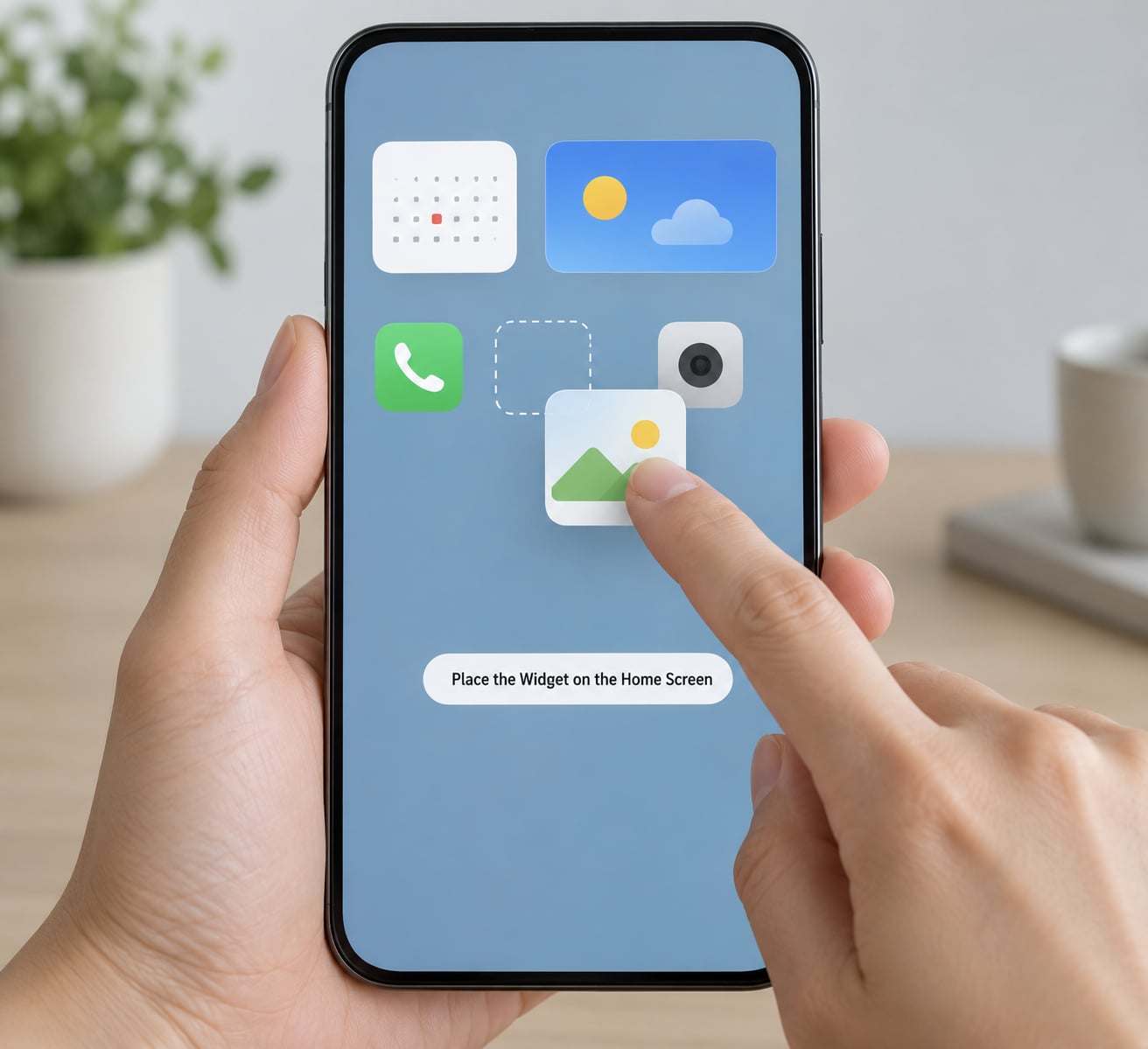
With the widget highlighted, drag it with one finger to the exact spot you want. Drag toward the screen edge and hold for a moment to slide it onto the next page. Tap the empty space outside the widget to drop it in place.
Tap Done at the top, or tap an empty area to leave jiggle mode. You know it worked if the card stays where you left it and shows current information rather than a placeholder.
If the Home Screen snaps back to the first page the moment you finish, that is iOS 18 behaviour that several people on Reddit have complained about. Tap Done, then swipe to the page you want and move the widget while the icons are already jiggling.
Edit the Widget’s Content
Touch and hold the finished widget, then tap Edit Widget, or tap the pencil-style control that appears on the widget itself on iOS 18 and later.
What you get depends on the app. Calendar lets you switch between a list of events and the next upcoming one, plus a Show Calendar toggle. Clock changes format and which time zone shows. Weather picks the city. Photos selects the album. Reminders picks the list.
Tap Done, or tap outside the widget, and the change sticks immediately.
Use Swipe Actions and Interactive Controls
Since iOS 16, some widgets are interactive. Tap a calendar entry to open that event, swipe a music widget to skip tracks, turn a dial to adjust volume, or flip a home accessory control without leaving the Home Screen.
Tapping the rest of a widget opens the app behind it. Not every widget supports every action, and older devices on older iOS will tap straight through to the app.
Remove or Resize a Widget
Touch and hold the widget until it lifts, then tap the small minus badge in its corner and confirm Remove. That deletes the widget only. The app stays in your App Library.
To resize, touch and hold the widget, lift it with one finger, then drag the small handle in its bottom corner. Drag wider for medium, taller for large. Let go when the grid snaps to the size you want.
To move it to another page, lift it and drag to the screen edge, hold, and let it slide across. If the widget refuses to budge, enter jiggle mode by touching and holding any icon, then try again.
Common Mistakes
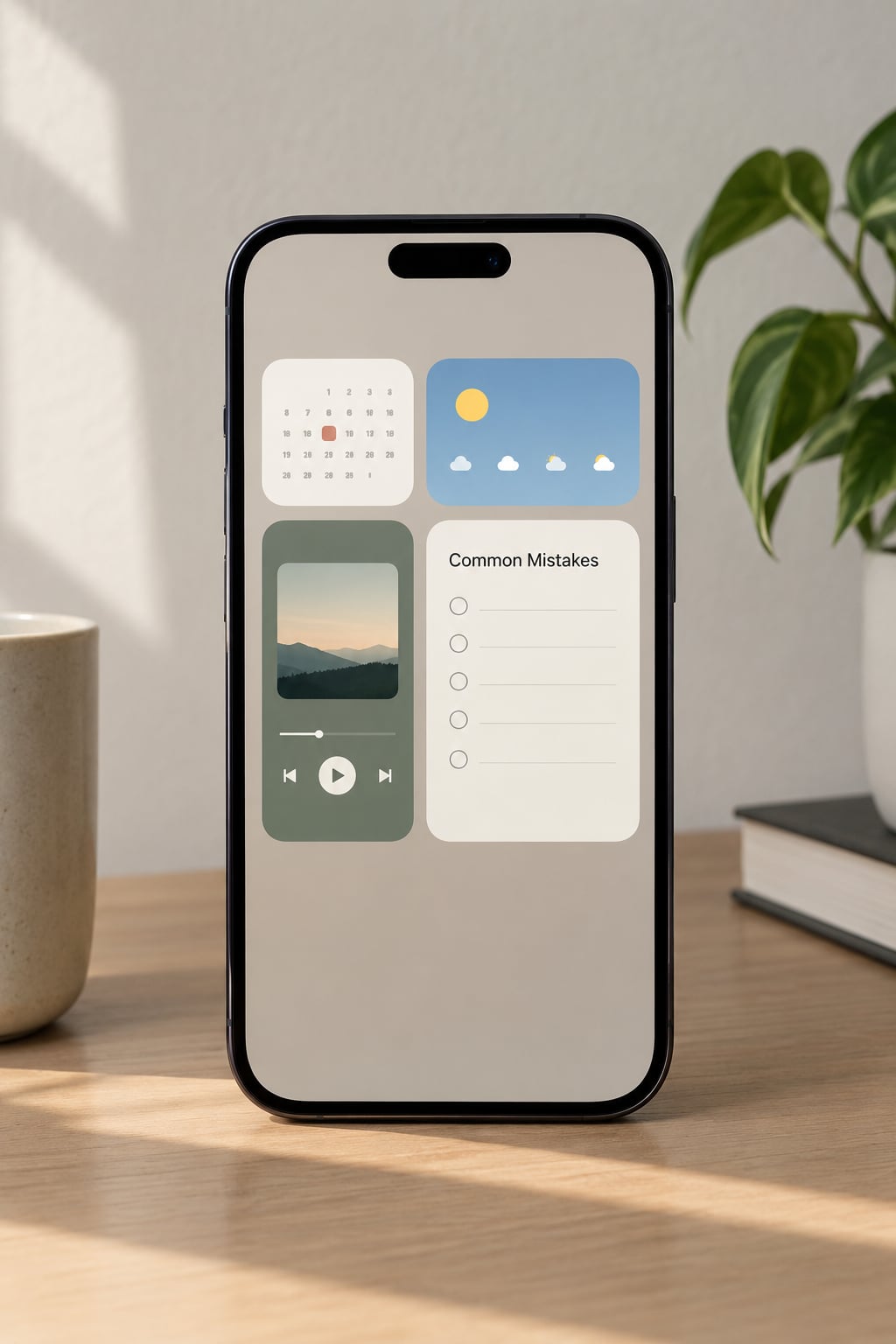
Nearly every widget problem comes down to one of five things: the widget landed on a different page than expected, the app has no widget at all, the buttons inside it do nothing, the content stopped refreshing, or the size is smaller than you wanted.
Each has a straightforward fix in the next section.
Fix Problems and Improve the Home Screen
Add Widget is missing. On iOS 18 and later the button is Edit, not a plus sign. Long-press an empty area, tap Edit at the top, and the gallery opens from there. If you still cannot find it, the Home Screen may be full, so remove an app icon first.
Your widget is on the wrong page. It lands on the page visible when you tap Add Widget. Swipe through your pages to find it, or in jiggle mode lift it and drag it to the edge to carry it to the page you actually wanted.
The app has no widget at all. Not every app ships one. Open the app and check its settings, or search the App Store for a widget builder. Users of a particular speaker system reported on Reddit that it simply has no widget, so a third-party builder was the only route.
Removing a widget also lost the app. This does not normally happen on Home Screen widgets. But with custom widgets built in apps like WidgetSmith, deleting that app deletes the widget with it, and it cannot be re-added without recreating it.
Controls inside the widget do nothing. Interactive controls need iOS 16 or later and an app that supports them. On older versions, or with an app that has not added support, tapping just opens the app.
Widgets stopped updating. Restart the iPhone first. If one specific widget is blank while the rest are fine, delete that app and reinstall it from the App Store. Users on the i4talk forums reported widgets vanishing after a blank screen glitch, and a restart cleared it.
You want the default layout back. Go to Settings, then General, then Transfer or Reset iPhone, then Reset, then Reset Home Screen Layout. This returns icons and widgets to their standard positions, so do it before rebuilding anything you like.
A few habits keep a Home Screen readable. Give widgets a dedicated page instead of mixing them between icons, stick to one or two sizes so the grid stays even, and check that your app supports widgets before planning a layout around it. If you use widgets from several apps on one page, match their widths so nothing looks accidental.
Frequently Asked Questions
Can I add widgets to the iPhone Home Screen without holding an empty area?
Yes. You can long-press any app icon instead, and the icons will enter jiggle mode, then tap Edit at the top of the screen to reach the widget gallery. Holding an empty area is simply the fastest route when you have one free. The gallery is also reachable from Today View by swiping right and tapping Edit, then Add Widget.
Why is the Add Widget button not showing on my iPhone?
On iOS 18 and later, the button is labelled Edit rather than a plus sign. Long-press the Home Screen, tap Edit at the top, then choose Add Widget. On iOS 14 through 17 you get Edit Home Screen and then a plus button. If neither appears, your Home Screen page has no free space, so delete an icon first and try again.
Why is my new widget stuck on another Home Screen page?
iOS places the widget on whichever page is visible when you tap Add Widget, so check the pages on either side of the one you were on. To move it, touch and hold the widget until it lifts, then drag it toward the screen edge and hold there to slide it across. On iOS 18 the Home Screen sometimes returns to the first page, so move the widget after tapping Done.
What is the difference between a Home Screen widget and a Lock Screen widget?
A Home Screen widget lives on any page you swipe to and stays there permanently. A Lock Screen widget sits on the screen you see when you pick up the phone, and it needs iOS 16 or later. Lock Screen widgets come in rectangular accessory shapes as well as square ones, and they follow a clock style and colour tint you choose.
Can widgets replace app icons or update automatically?
Widgets update on their own, pulling current information from the app without you opening anything. They can cover the space of several app icons, but on iOS 14 through 17 they do not replace one, since the icon stays alongside the card. From iOS 18 you can turn an app into its widget with a long-press, which does remove the icon from view.
Conclusion
The quickest path is short: touch and hold the Home Screen, tap Edit or the plus button, choose an app and a size, tap Add Widget, drag it where you want it, then tap Done. That is genuinely all it takes to add widgets to your iPhone Home Screen.
Start with one widget you will actually use, then adjust its size, content and position. Adding ten at once is how Home Screens end up cluttered.