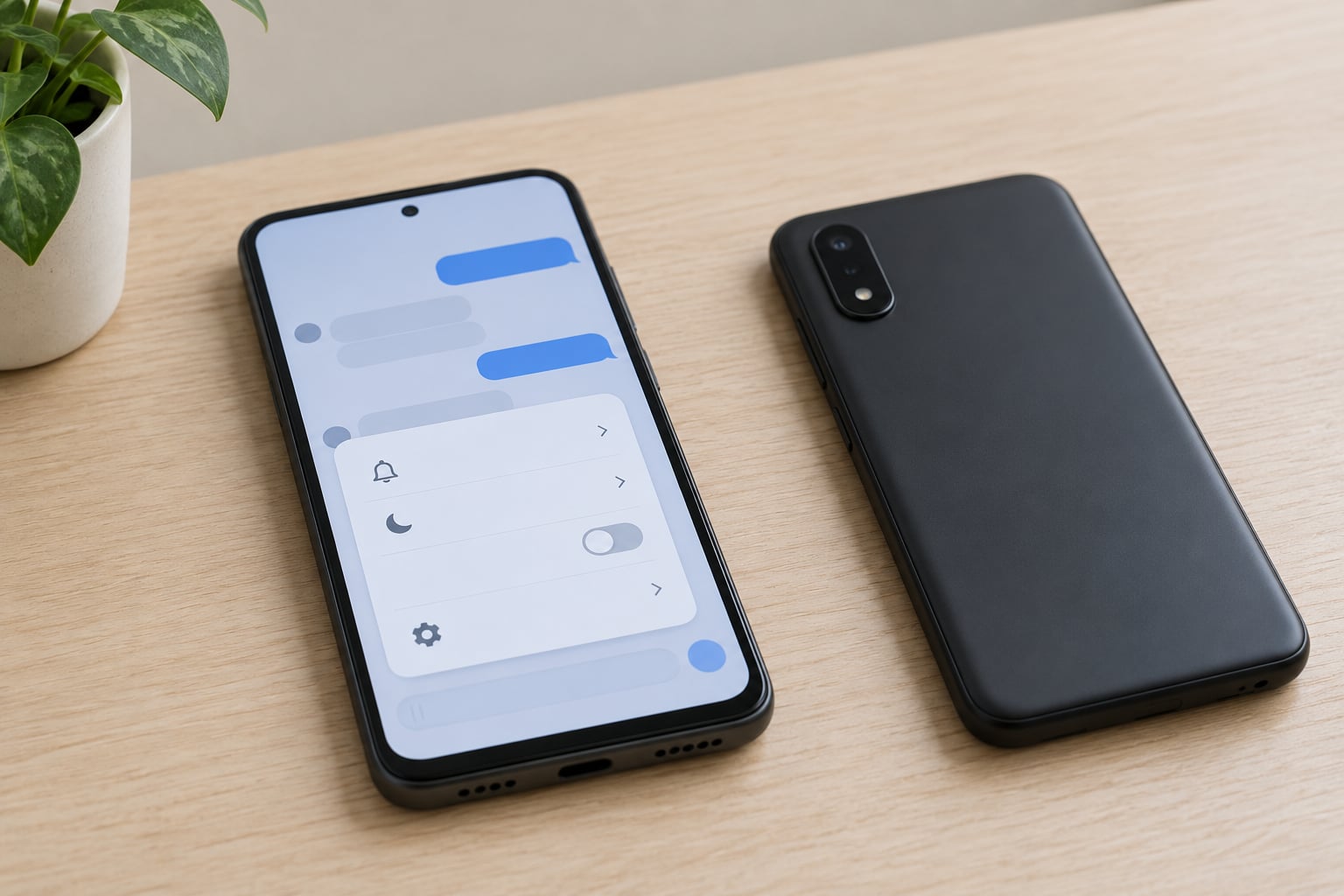
You can turn off read receipts on iMessage in two ways: switch off Send Read Receipts in Settings to hide your reading status from everyone, or open a single conversation and turn off the per-contact override for just that person. On current iOS the global path is Settings, then Apps, then Messages, then Send Read Receipts. It takes about fifteen seconds and needs no extra apps.
The part people find confusing is what happens afterwards. Your messages still arrive, and the sender still sees Delivered under each one. What disappears is the word Read and the timestamp that came with it, so nobody knows when you opened the thread.
Table of Contents
What You Need
Nothing special. You need an Apple device with iMessage switched on, the Messages app, and roughly fifteen seconds of attention. Read receipts have been adjustable per conversation since iOS 10, so any iPhone or iPad from the last decade will do.
One thing worth checking before you start: look at the bubbles in the conversation you care about. Blue means iMessage, and read receipts apply. Green means SMS or RCS, and there is no read receipt setting that applies to it at all.
RCS is the confusing exception. A contact on an Android phone can appear in a green thread that still shows delivery and read indicators through RCS, and your iPhone’s Send Read Receipts switch has no effect on those.
Step-by-Step: How to Turn Off Read Receipts on iMessage
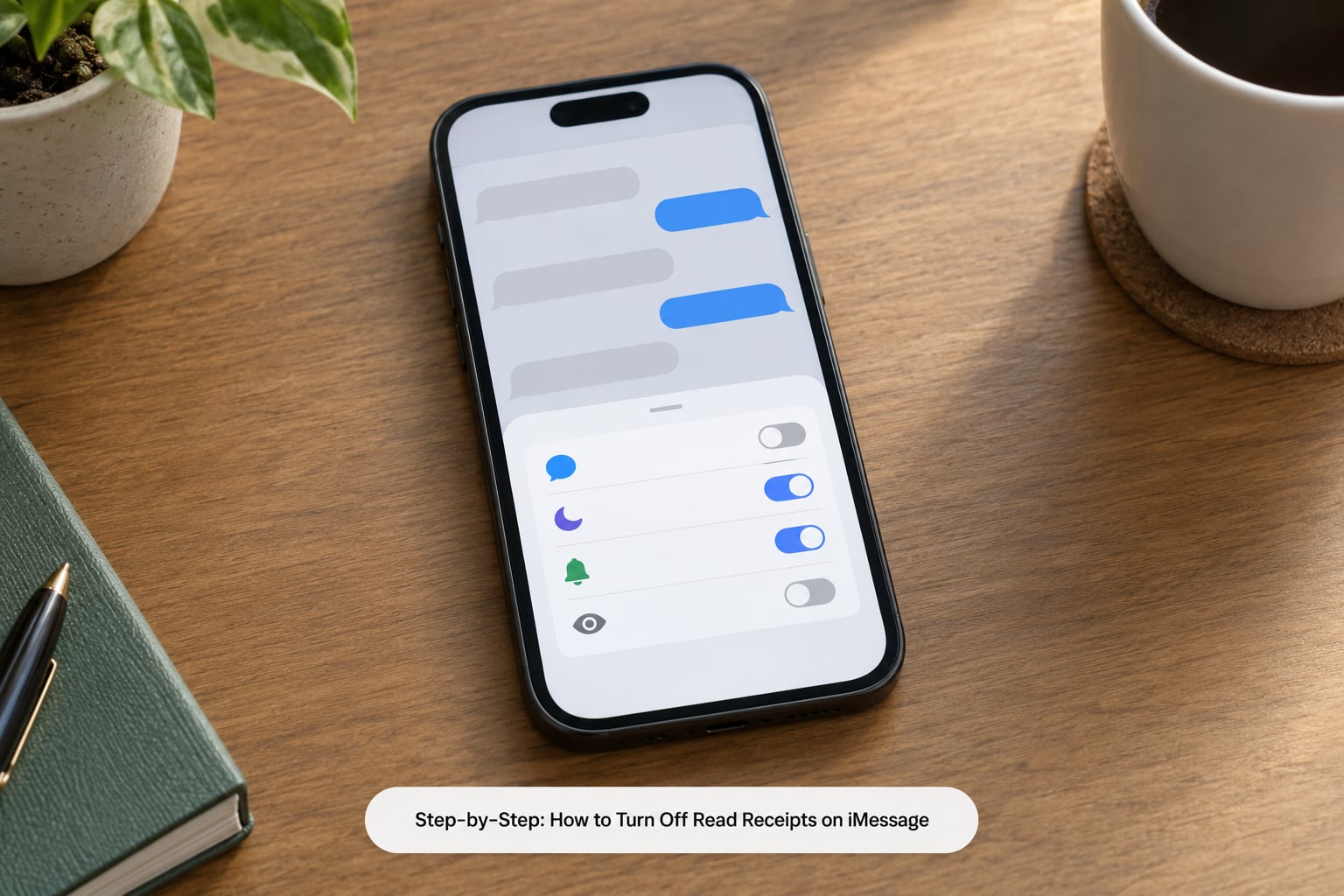
Turn off read receipts for everyone
- Open the Settings app on your iPhone.
- Tap Apps, then tap Messages.
- Turn off Send Read Receipts. The switch goes from green to grey.
That is the whole global change, and it applies to every iMessage conversation on the phone. If you cannot see an Apps row in Settings, you are on iOS 17 or earlier, where the path is Settings, then Messages, with the same Send Read Receipts switch in the list. The switch position is identical on both.
Turn off read receipts for one person
- Open the Messages app and tap the conversation with that person.
- Tap the contact name or photo at the top of the screen, then tap Show Info, or Info on older versions.
- Scroll to the bottom of the info screen and turn off Show Read Receipts.
This is the setting most guides bury, and it is the one that solves the actual problem for a lot of people. You can silence a single chat thread, such as a family group or a work thread, while leaving receipts on everywhere else so your close conversations still show you have seen them.
Per-chat toggles sometimes appear to revert on their own. Users on Reddit’s iPhone and iOS communities report exactly that behaviour, so check the switch again after a few days rather than assuming you clicked the wrong thing.
What the other person sees after you turn them off
Delivered and nothing more. The Delivered label means the message landed on the other person’s device, and it shows whether your receipts setting is on or off. Read, with a time, means they opened the conversation and you sent them a receipt.
Two related statuses are worth recognising. Delivered Quietly appears when a Focus is active on the receiving device. It is a Focus effect, not proof that read receipts are switched off, and opening the thread in person still marks the message as read.
You also cannot force the other side. Read receipts require both people to have the feature enabled, so if your contact has theirs off, you will never see Read on their messages no matter what you do. Your setting only controls what you send, not what you receive.
How to turn read receipts back on
- To switch receipts on for everyone, open Settings, tap Apps, then Messages, and turn Send Read Receipts back on. On iOS 17 and earlier, go to Settings, then Messages instead.
- To switch them on for one person, open that conversation, tap the name at the top, tap Show Info, and turn Show Read Receipts back on.
If receipts still do not appear after you switch them back on, the conversation is probably going over SMS or RCS rather than iMessage. The bubble colour is the fastest check.
How to read a message without it showing as read
Turning receipts off stops other people knowing, but the message is still marked as read on your side the moment you open the thread. For the times you want to know what it says without formally reading it, you have a few options.
- Read it in the notification itself. On the lock screen, expanding a notification shows a preview without opening the conversation. The message is still marked read once the notification appears, so this hides nothing from the sender, but it lets you decide whether to reply now or later.
- Use a Focus. A Focus keeps notifications off the lock screen for a chosen set of contacts, which removes the temptation to open the thread. It does not undo a read status once you have opened it.
- Keep receipts off for that contact permanently. The per-contact override is the only real answer if the goal is that the sender never learns you saw the message.
Troubleshooting: when the toggle does not work
If messages still show Read after you turned receipts off, work down this list in order. Each step is cheap and none of them delete your conversations.
- Check the switch is genuinely off. Open the conversation, tap the name, and confirm Show Read Receipts is grey rather than green.
- Check the bubble colour. A green thread is SMS or RCS, and your iMessage setting does not govern it.
- Toggle the setting off, wait a few seconds, then on and off again. This clears a stuck state more often than people expect.
- Force-quit Messages, then reopen it. Swipe up from the home screen and flick the Messages app away.
- Restart the phone. Boring, but it resolves more iMessage issues than any other single step.
- Check for an iOS update. Some versions have shipped with a fault where Messages sends read receipts despite the switch being off, and installing the current version is the fix.
- Sign out of your Apple ID in Settings, then your Apple Account, then Messages, and sign back in. iMessage can sit at Waiting for activation for a while after this, sometimes up to a day.
- As a last resort, reset network settings. This clears Wi-Fi passwords, so only do it if the earlier steps failed.
There is also a reported behaviour, discussed on Apple’s own support community and on the TidBITS forums, where Messages keeps sending read receipts after the toggle is switched off. Thread after thread describes the same thing: receipts off, restart, toggle iMessage off and on, and messages still arriving as Read. Most of those cases clear when Apple patches it, but there is no way to force the fix from your side other than updating iOS and checking the toggle again.
Airplane mode is the edge case people ask about. If you switch read receipts off while in airplane mode and then reconnect, anything you opened in between still syncs its read state once you are back online. Turning the setting off in airplane mode does not queue a special hidden state.
Common Mistakes
Changing the wrong conversation. The global switch in Settings, Apps, Messages controls every chat. The override inside a conversation controls only that chat. If you only wanted one person silenced, you have probably turned everything off by accident.
Looking for a Delivered switch. There is not one. Delivered is a status the sender sees and you cannot turn it off in iMessage. What you control is whether the word Read and its timestamp follow it.
Following a pre-iOS 18 path. Plenty of tutorials, including ones still ranking well, send you to Settings, then Messages. On iOS 18 and later that row no longer sits in the main Settings list. Look for Apps instead.
Expecting past read data to disappear. Turning receipts off stops future receipts. Messages already opened and marked Read keep the timestamp on the sender’s side, and you cannot remove it.
Changing only the iPhone. Your iPad and Mac have their own setting. On an iPad it is Settings, Apps, Messages, Send Read Receipts. On a Mac, open Messages, press Command comma for Settings, and turn off Show read receipts in the General tab. Change each one you actually use.
Expecting the other person to notice. The sender sees Delivered instead of Read, and nothing announces that you made a change. If they knew you previously always read straight away, they will simply stop seeing a time.
Frequently Asked Questions
Does turning off read receipts on iMessage stop delivery receipts?
No. Delivery receipts are separate and stay on. The sender will still see Delivered under each message, which confirms it arrived on their device. What you remove is the Read label and the timestamp. You cannot switch Delivered off in iMessage, and if you want fewer interruptions, silencing the conversation or muting notifications is the better move.
Can I turn off read receipts for only one person on iMessage?
Yes. Open the conversation, tap the contact name or photo at the top, tap Show Info, then scroll down and turn off Show Read Receipts. That silences just that thread while every other conversation still sends receipts. Per-conversation control has existed since iOS 10. Some users report these toggles reverting occasionally, so it is worth rechecking after a few days.
Why can the other person still see that I read a message?
A few things cause this. Messages you opened before turning receipts off keep the Read timestamp permanently. Blue threads that later turn green are SMS or RCS, where the iPhone setting does not apply. Some iOS versions have shipped a fault that sends receipts even with the switch off, which is fixed by updating iOS. And on your iPad or Mac, the setting has to be changed separately.
How do I turn read receipts back on in iMessage?
For everyone, open Settings, tap Apps, then Messages, and turn Send Read Receipts back on. On iOS 17 and earlier, go to Settings, then Messages. For one person, open the conversation, tap the name at the top, tap Show Info, and turn Show Read Receipts back on. If you still see no Read label afterwards, check the bubbles, because a green thread is SMS and iMessage receipts never applied.
Does turning off read receipts work on an iPad too?
It does, but you have to set it on the iPad itself. The iPad has its own copy of the setting at Settings, Apps, Messages, Send Read Receipts, and changing it on your iPhone does nothing for the tablet. On a Mac, open Messages, press Command comma, and turn off Show read receipts under General. Turn the switch off on every device you carry and the change holds everywhere.
Conclusion
Start by opening the conversation you actually care about and tapping the contact name at the top, then turning off Show Read Receipts. That one change silences a single thread and leaves the rest of your iMessage setup alone, which is usually what people are after. If you want receipts off everywhere instead, go to Settings, Apps, Messages and switch off Send Read Receipts.
Whichever route you take, check you are editing the right place: the global switch governs all chats, the per-chat switch governs one. And remember what the change does and does not do. Messages are still delivered, Delivered still shows, and disabling read receipts never stops you from seeing when other people have read yours.